

Label faster with Smart Labeling
Smart Labeling draws the label for you: click on an object, or drag a box around it, and an AI model in the cloud traces its outline. In this guide you label the four biscuits of a pack, one click each.
What you will learn
- How to start Smart Labeling
- How to label an object with one click, or with a box around it
- How to correct the proposed mask and keep it
Before you start
You need a dataset with images and at least one tag. Smart Labeling works in every dataset type except classification. The editor is described in Get to know the labeling editor.
1. Choose Smart Labeling
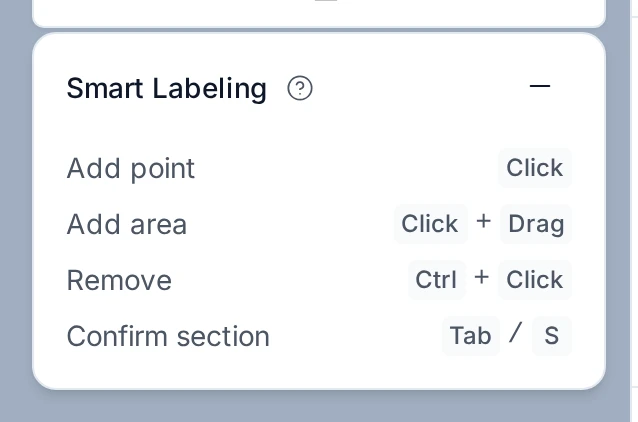
Choose «Smart Labeling», the magic wand in the toolbar; it stays disabled until the dataset has a tag. The model runs in the cloud: the first time, the card shows it starting («Starting Instance», «Loading Model»), and then it lists what each gesture does. The «?» next to the title plays a short tutorial.
2. Click on an object
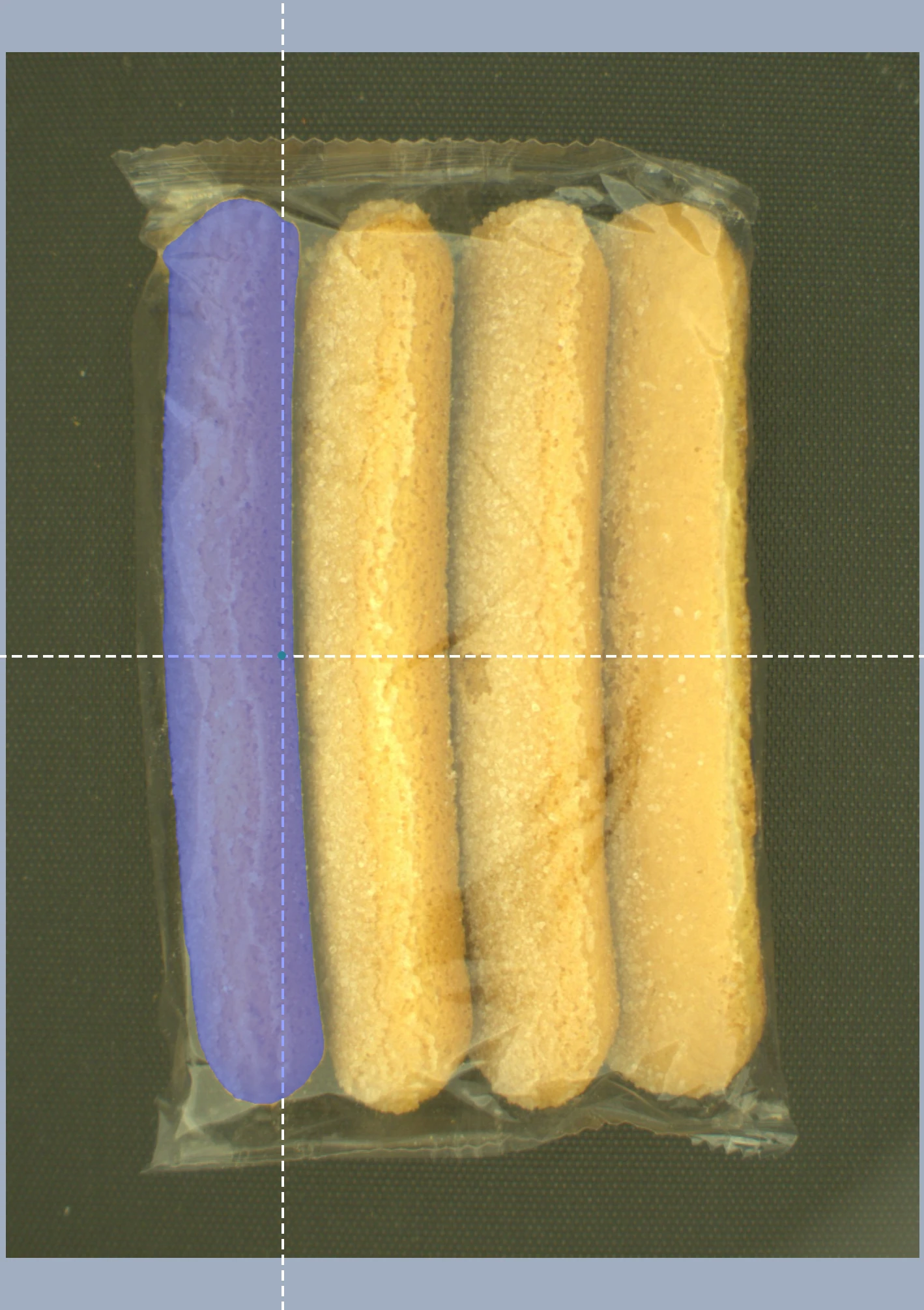
Click on the object you want to label. In a moment Smart Labeling draws its mask, with the tag chosen in «Available tags». The mask is a proposal: if it misses a part, click that part too; if it takes in too much, Ctrl+Click on what it should leave out. Every click redraws it.
3. Keep the mask
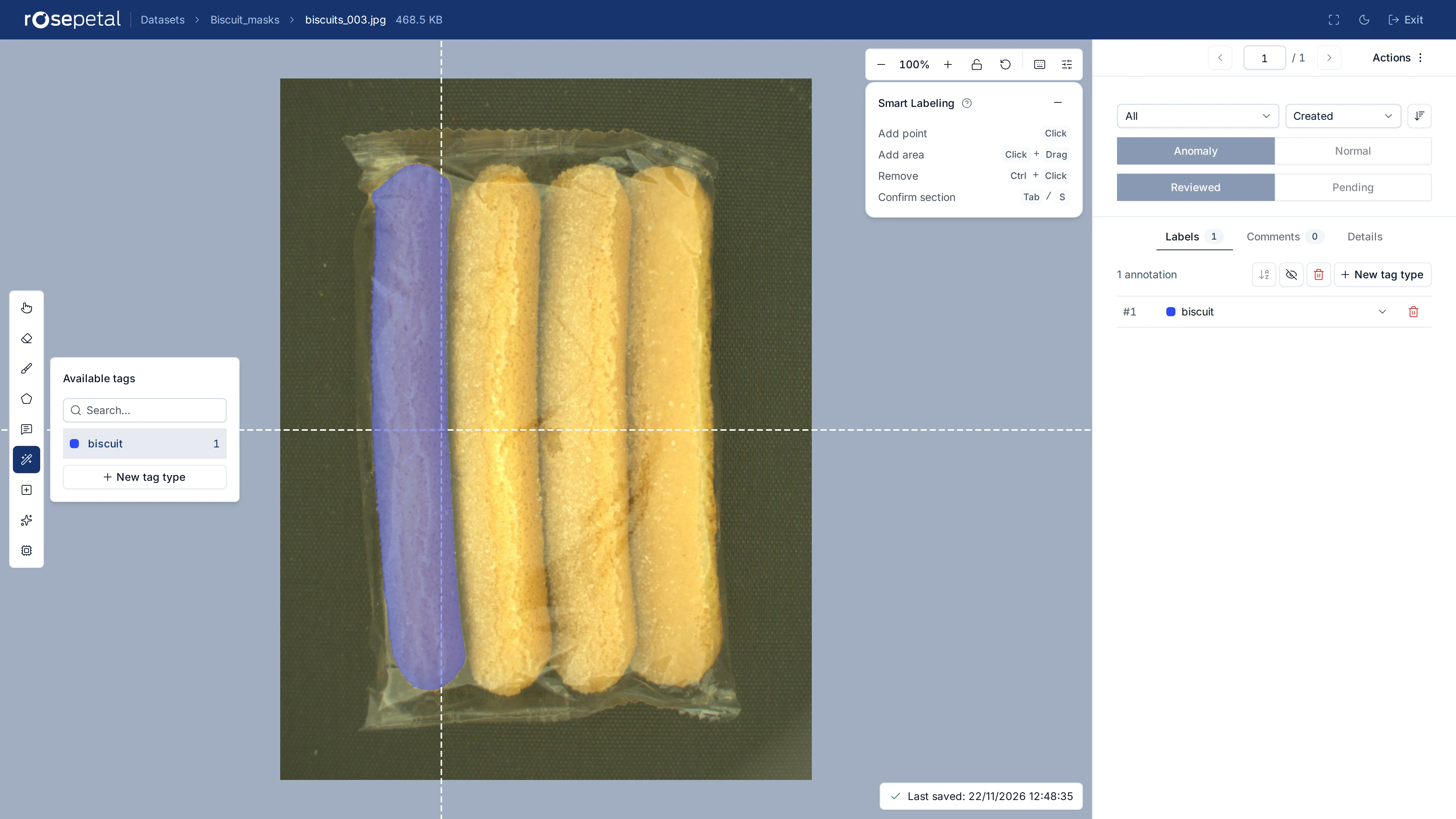
Press Tab or S to keep the mask, or click «Add Smart Label», the «+» under the wand. It becomes a label like one drawn by hand, and the next click starts a new mask. A mask you have not kept is kept anyway when you go to another image or choose another tool.
4. Label the next objects
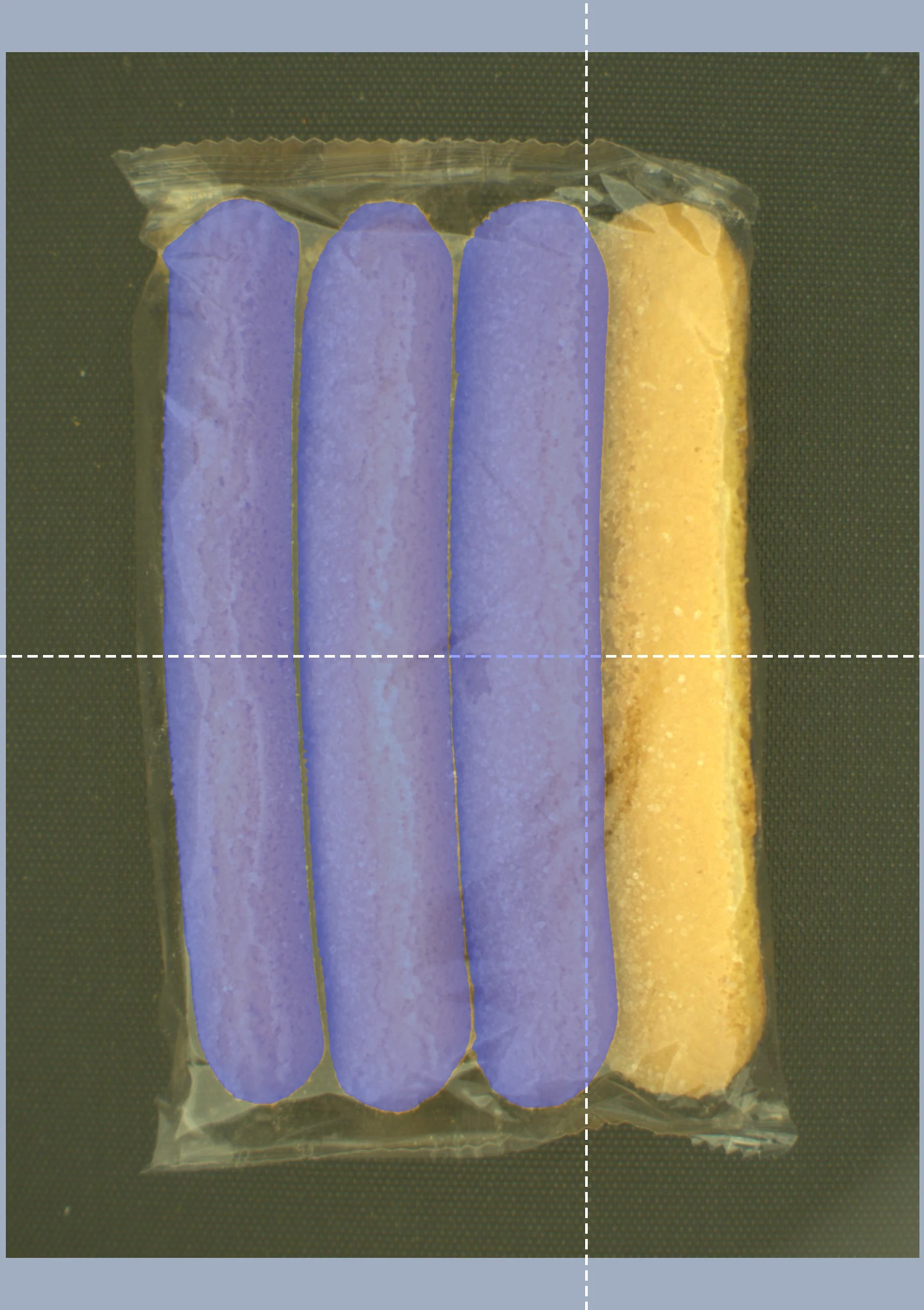
Go on with the rest: click on the object, check the mask, press Tab.
5. Drag a box around an object
Instead of clicking, you can drag a box around the object: Smart Labeling looks for the object inside the box. It helps with small objects and with objects that touch others. Press Tab to keep the mask.
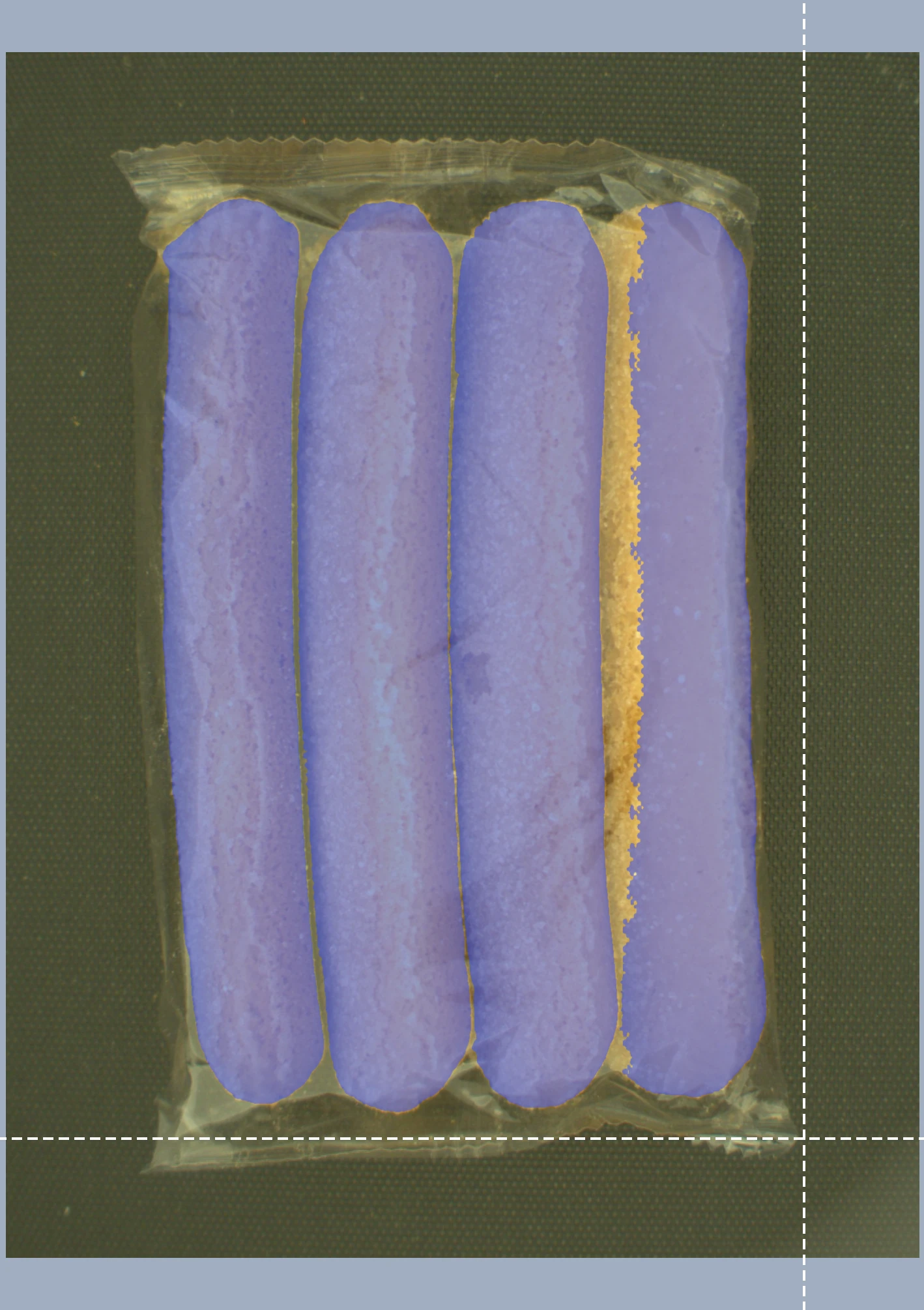
6. Check the labels
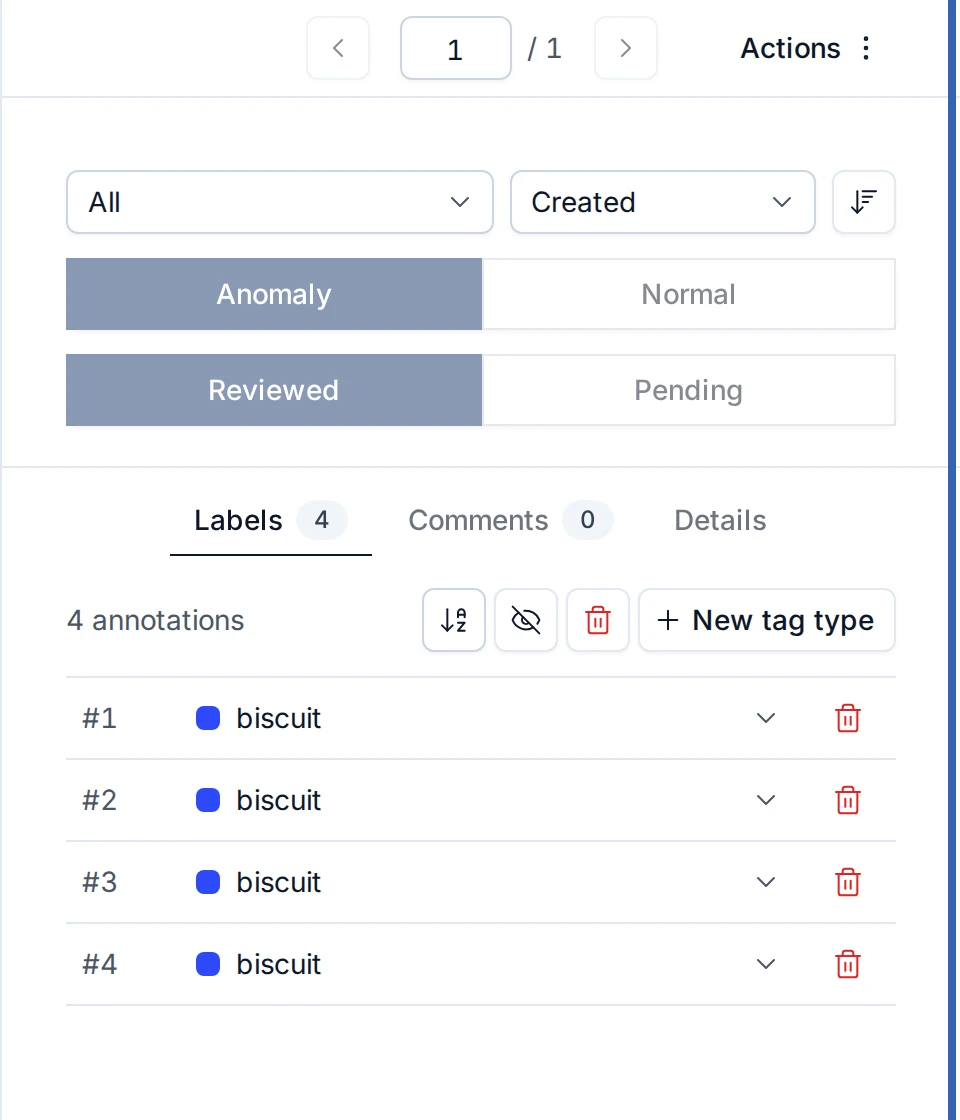
The «Labels» panel lists every mask with its tag. They are ordinary labels: change their tag there, correct them with the brush or the eraser, or delete them.
Good to know
- Masks or boxes. In segmentation and anomaly detection datasets Smart Labeling draws masks. In object detection and text recognition datasets it draws a box, and in oriented boxes datasets a rotated box. It is not available in classification datasets.
- Tokens. The model runs on a GPU in the cloud, and the time it works for you is counted in the project's token usage.
- Session. After 30 seconds without a click, the session closes and the card says «Session expired due to inactivity». Click «Resume» to start it again.
Next steps
- Label segmentation masks with brush and polygon to draw or touch up masks by hand
- Label objects with bounding boxes
Recorded on Rosepetal release 1.8.15.